
Log in as the root user.
Go to Settings >> Backup.
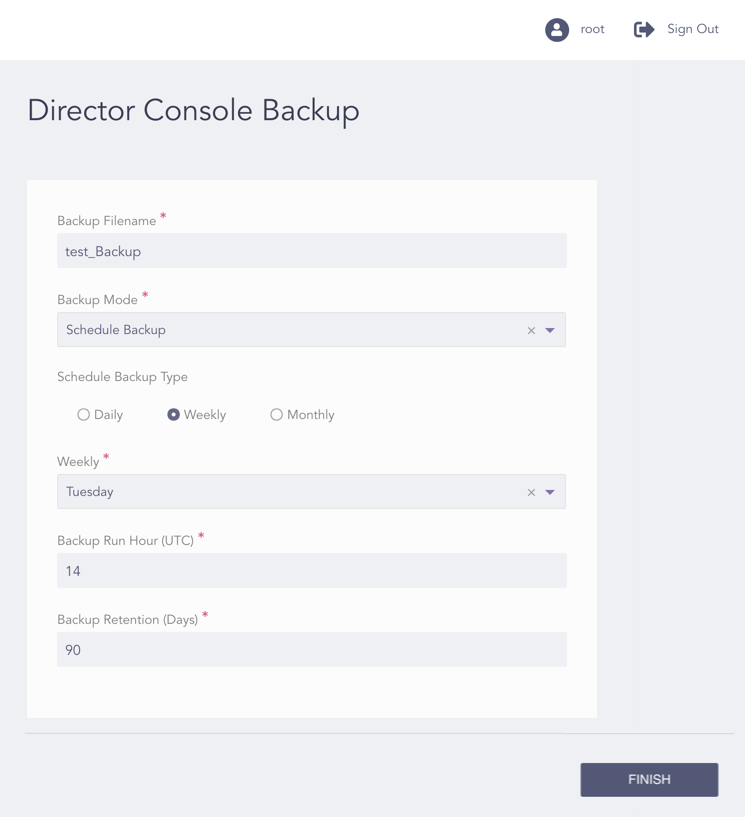
Creating a Director Console Backup
Enter a Backup Filename.
Select a Backup Mode.
4.1. Select Backup Now to create a backup of the current state of the Director Console configuration.
4.2. Select Schedule Backup:
4.2.1. Select Daily, Weekly, or Monthly as the Schedule Backup Type.
Note
In the Weekly backup type, select the Weekly day when you want the backup to take place.
4.2.2. Enter a Backup Run Hour (UTC).
4.2.3. Enter a Backup Retention (Days). The application keeps your backup file for the number of days entered and deletes it after the retention period is complete.
Click Finish.
The Director Console UI backup is stored in the following format:
<entered_backup_filename>_<date_of_the_backup_taken><time_stamp>.tar.gz
Here, the date_of_the_backup_taken must be in YYYYMMDD format and the timestamp is in the HHMMSS format. For example: test_Backup_20191021083711.tar.gz